Installing the Delft Municipal Data Model
The Delft Municipal Data Model (Dutch: Gemeentelijk Gegevensmodel, abbreviated GGM) can be installed in a few different UML / enterprise-architecture tools. The Dutch abbreviation GGM is used throughout this site.
Using the example file
This is the easiest way to get started with the GGM. It also works with the Enterprise Architect viewer.
- Install Enterprise Architect or the Enterprise Architect viewer.
- Download the file
Gemeentelijk_Gegevensmodel.qea. - Open
Gemeentelijk_Gegevensmodel.qeain Enterprise Architect.
Importing the XMI file into a project
The Municipal Information Model (GGM) can be imported in XMI format into an existing project in Enterprise Architect. This option does not work with the Enterprise Architect viewer.
You can also import it into another tool that supports UML. We have no experience yet with other tools — feedback is welcome!
The steps to import it into a new or existing Enterprise Architect project are:
- Download the GGM XMI file (compatible with Enterprise Architect 15, 16 and 17) and save it locally.
- Start Enterprise Architect (or another XMI-compatible tool).
- (Optional) Create a new project.
- Choose "Import Package from XMI".
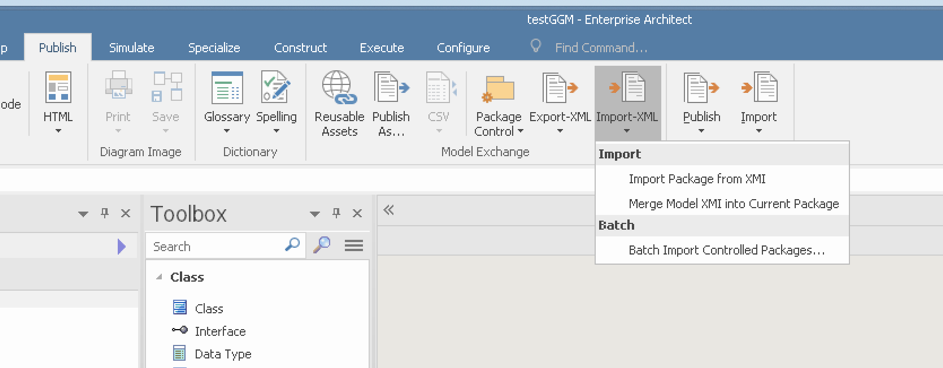
Screenshot (in Dutch / Enterprise Architect UI): the "Import Package from XMI" option in the Publish tab.
5. Select the downloaded file Gemeentelijk Gegevensmodel XMI2.1.xml for "Filename".
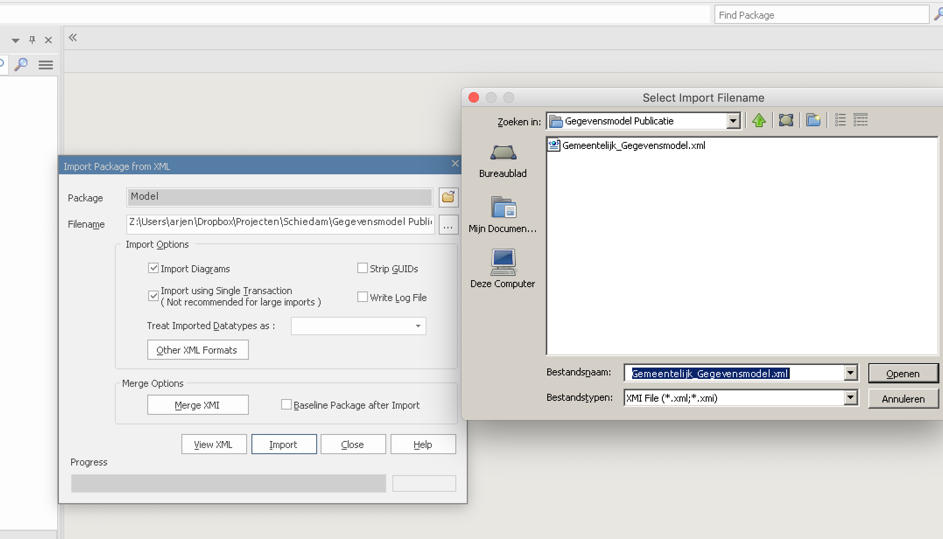
Screenshot: file-selection dialog showing the chosen XMI file.
6. Leave the settings as they are and press "Import".
Screenshot: import dialog with default settings, "Import" button highlighted.
7. Wait a moment… 8. Open the model and you will see the various policy domains and their diagrams.
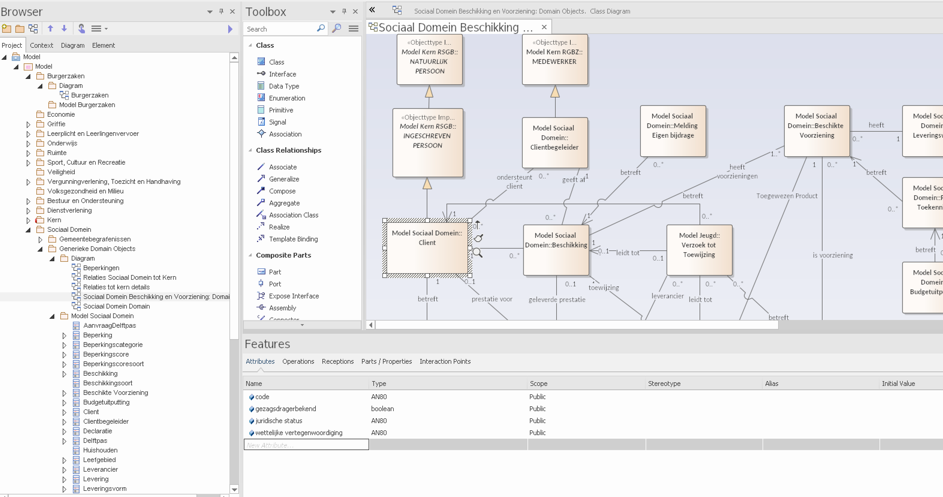
Screenshot: the loaded GGM model in the Enterprise Architect Project Browser, showing policy domains.
8. Done!
Installing the GGM in Bizzdesign
The GGM can be imported in XMI format into an existing project in Bizzdesign. A separate script — provided by Bizzdesign specifically for the GGM — is used for this.
Importing the GGM into Bizzdesign
The steps to import it into a new Bizzdesign project are:
1. Download the file Gemeentelijk Gegevensmodel XMI2.1.
2. Start Bizzdesign.
3. Open a new model package containing an empty UML model, or add an empty UML model to an existing model package.
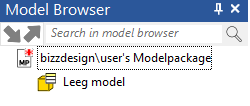
Screenshot (in Dutch / Bizzdesign UI): creating a new model package with an empty UML model.
4. Select the UML model and open the query editor with Ctrl-Q. Copy the contents of the script file UML XMI import Bizzdesign.txt into the query editor. Optionally save the script in the model.
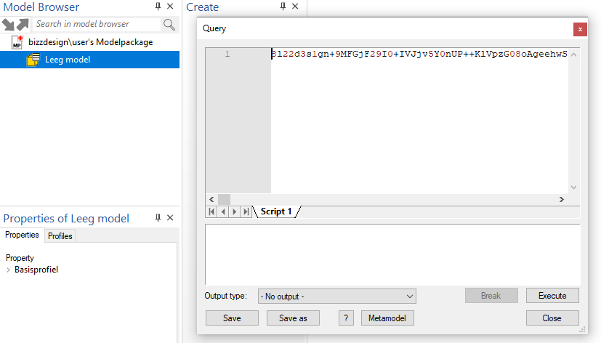
Screenshot (in Dutch / Bizzdesign UI): the query editor with the import script loaded.
5. Run the script via the Execute button of the query editor, and select the Gemeentelijk Gegevensmodel XMI2.1 XMI file you just downloaded. The contents are imported into the selected UML model. Make sure the output type is set to "No output" or "Table", not "Text file". You may see warnings while the script runs — these can be ignored.
6. Wait a moment…
7. Done!
Installing in Blue Dolphin
Below are the steps to load the AMEFF file into Blue Dolphin. For questions, contact your ValueBlue account or customer-success manager.
1. Download the AMEFF file from the GEMMA repository.
2. As a Blue Dolphin user with the Administrator role, you can upload AMEFF files. See the manual: importing AMEFF files (Dutch).
3. Done!